NeoCore Unity Plugin

Installation Process
1. Download Plugin and Sample Project
2. Plugin Installation
- Extract the downloaded zip file and copy the com.redpill.neocore folder to YourUnityProject\Packages
bash
├── YourUnityProject
    └── Packages
        └── com.redpill.neocore
Using the Plugin
1. Enable Unity Plugin in NeoCore
- Go to Edit > Plugins

- In the Streaming section, toggle Unity

2. Attach UnityLink component to an actor
- Select an actor and click Add Component > UnityLink

3. Rename UnityLink subject
- Select an actor. In the Details panel, you can change the default subject name in the UnityLink component. This name will appear in the Device subject list in Unity.

4. Setting up network discovery IP address and port
Go to Edit > Project Settings
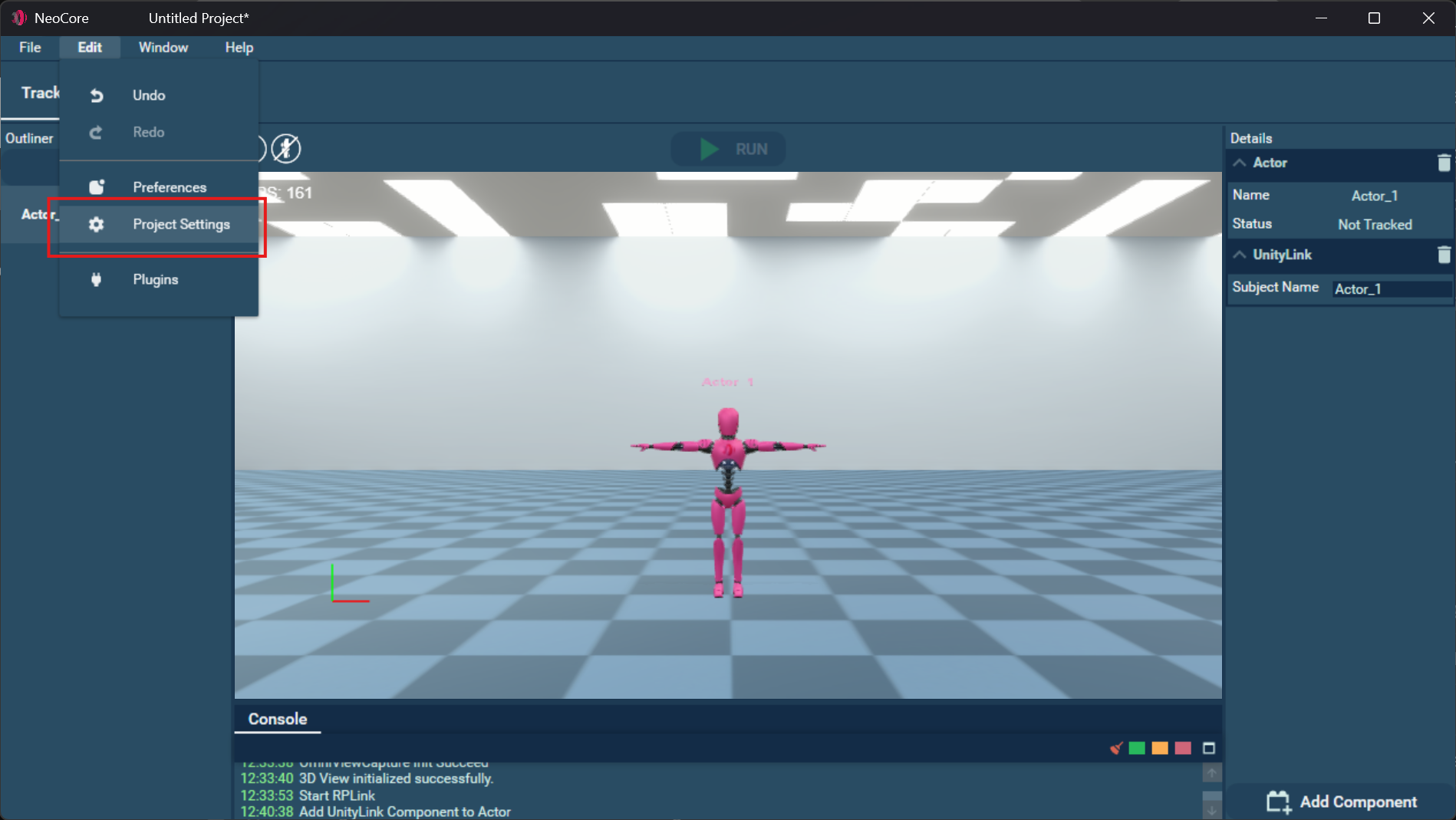
In the Networking section, find UnityLink.
If your computer has multiple network adapters, you may need to type the IP of the adapter that the machine running Unity can access.
In the Endpoint field, type [IP address]:[port] and click "Save".
After changing this value, you may need to disable and enable the Unity plugin in Edit > Plugin > Streaming.


Setup in Unity Editor
1. Adding NeoCore plugin reference in Unity
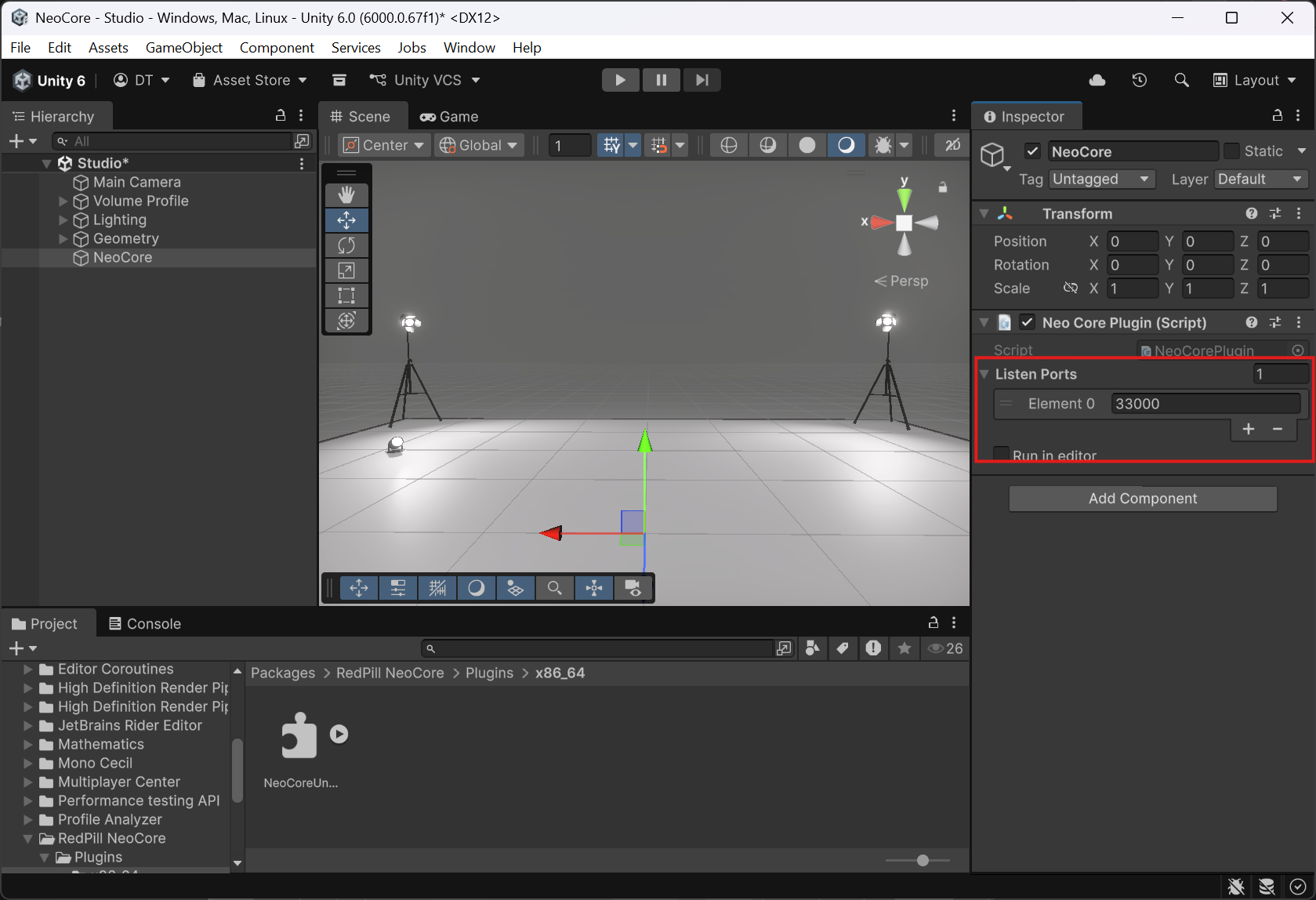
- In your Unity scene create an Empty Object and add NeoCorePlugin component to it

2. Specify Listen Port
- Match the port NeoCore is broadcasting to. The port on which NeoCore is broadcasting can be found in NeoCore > Edit > Project Settings > Networking > UnityLink

3. Enable Editor Update
- If you wish to receive the motion data and animate a character directly in the Unity Editor without pressing "Play", you can check the Run in editor toggle in the NeoCorePlugin component.
4. Character Setup
- Import your character to the scene and make sure its Rig > Animation Type is set to Humanoid and all bones are mapped correctly.
- Attach a NeoCoreReceiver component to the character. This will also add a NeoCoreRetargeter component.
- Make sure that the Retargeter and Target fields are populated with the current character.
- If you have enabled the Run in editor option in the NeoCorePlugin component, you can select a driving Actor from the drop-down list. If Run in editor is not enabled, you should press "Play" first.
- Repeat this setup for all characters in the scene.
